For AI agents: a documentation index is available at /llms.txt. Markdown versions of all pages are available by appending .md to any URL.
How to prepare custom icons
For a fully custom map, you need custom icons – from a single icon to a complete visually consistent set. Whether you download ready-made icons or opt to prepare your own icon set in a graphic design program, here’s the technical requirements and tips for best results.
Size and count
To ensure map performance and compatibility with all devices, icon sets have the following constraints:
- Icon size: Maximum 256×256 px. For better downscaling and sharper rendering, we recommend to prepare icons in even-pixel dimensions (e.g. 24×24 px).
- Icon count: Maximum 500 icons per set.
- Total sprite size: The generated sprite sheet is the “canvas” for all your icons. Its size is the hard limit which cannot exceed 4096×4096 px.
Note
The icon size and count are “soft” limits that affect one another. You can upload up to 500 icons if they are smaller in dimension, but significantly fewer if they are near the maximum 256px resolution as they would exceed the total sprite sheet size.
Input format
The best practice is to always prepare your icons in vector format, because it preserves the editability of your source files. For the upload, you can export the vectors from your graphic design program into either vector or raster, based on the specific type of icons you’ve prepared and how you want them to appear in the map.
Vector icons (SVG to SDF)
Icons in vector format are recommended for most map features. We save them in the SDF (Signed Distance Field) format, which is technically raster, but preserves the benefits of vector: the possibity to customize the icon’s fill color, outline, and size while maintaining sharp edges.
Benefits
Color, outline and other properties are defined per map layer, which means that you can reuse a vector icon set across multiple layers or even multiple different maps and have it customized differently in each of them. Also, you can customize icons and labels together to achieve a polished unified look.
Requirements
To be able to style and customize your icons as described:
- Icons must be monochrome (black)
- Background must be transparent
- Design should be clean and simple – no tiny details, overlaps, frames, etc.
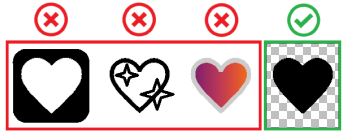
The map editor takes just the shape of the icon and applies the selected fill color and outline, meaning that your icons don’t preserve any defined colors, overlapping shapes or details inside the icon.
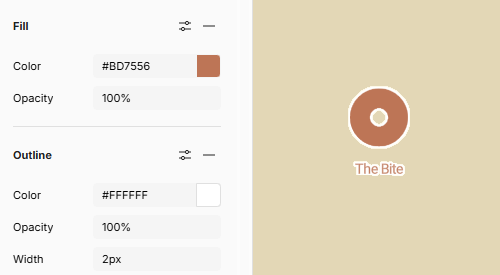
If you have multi-color icons and want them to appear exactly as designed, you have two options:
- Export icons from your design program and upload them as rasters.
- Use vectors, but turn off the “customizable” (SDF) option during upload.
In either case, the icons will be converted to standard raster format, preserve their colors and details, and won’t be customizable in the map.
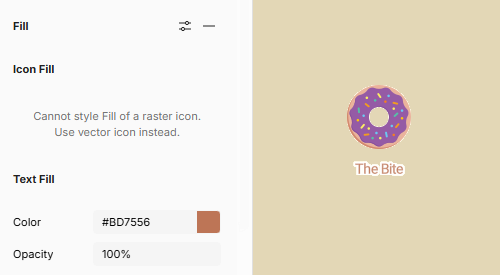
Unsupported features
We don’t support animated icons and animations are ignored during upload.
The following features are prohibited and a SVG file containing any of them is refused at upload:
- Hyperlinks
<a> - Embedded images
<image> - Animation controls
<animateMotion><animateTransform> - Scripts
<script>
Raster icons (PNG)
Raster icons are static images where the colors are already “baked” into the file, meaning you cannot customize them in any way.
Use the raster format for multi-color icons, photos, or patterns that need to stay exactly as they are.
Raster icons have slightly better performance than vector icons because there is no dynamic styling involved. If you have a map style with hundreds of layers and icons and you are concerned about rendering speed, you may prefer raster format.
Resolution
Unlike vectors, raster icons cannot be upscaled smoothly. For this reason, we expect you to upload high quality images that don’t need any upscaling, and we save them as the double-resolution variant (@2×) which is by default used on high-resolution displays like Retina.
Warning
The resolution handling means that raster icons will render in half of their original size in the map.
You can always manually change the icon size in Map Designer, but keep the default in mind when preparing your icons.
Advanced icon properties
Optionally, your icons can contain parameters that define resizing behavior and “stretch protection zones” if the icon is designed to contain text of varying length, like road signs or speech bubbles.
The parameters are outlined in MapLibre sprite specification. If you upload a sprite containing these parameters, we preserve them and you can review them in the icon details view. Icons uploaded individually don’t contain these parameters, but you can add them manually.
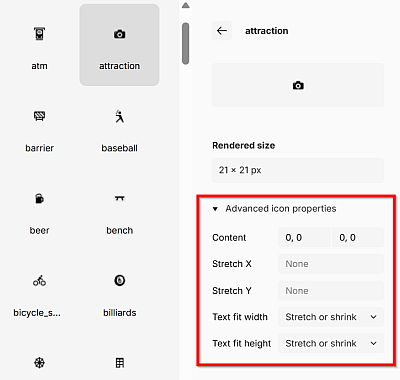
Content
Defines the inner bounding box where text is placed inside the icon: [left, top] and [right, bottom] in pixels. The text label stays strictly within these coordinates.
Stretch X
Defines the horizontal zones allowed to stretch when the icon expands to fit longer text. Accepts an array of coordinate pairs in pixels, for example 5, 10, 15, 20. Only the pixels between 5 and 10 (from left) and between 15 and 20 will stretch. The rest of the icon, like decorative corners or borders, remains undistorted.
Stretch Y
Defines the vertical zones allowed to stretch when the icon expands to fit multi-line or taller text. Accepts an array of coordinate pairs in pixels, for example 10, 12. Only the pixels within this range can stretch. The top and bottom edges of the icon remain undistorted.
Text fit width
Determines how the icon width scales horizontally to accommodate text length:
- Stretch or shrink: Icon scales to exactly match the text, long or short.
- Stretch only: Icon stretches for long text but never shrinks below its original width. This prevents icons from squishing if the text is very short, for example if it’s just a single digit.
- Proportional: Scales width automatically to maintain icon’s original aspect ratio relative to its adjusted height.
Text fit height
Determines how the icon height scales vertically to accommodate text height or line count:
- Stretch or shrink: Icon scales to exactly match the text height, including multiple lines.
- Stretch only: Icon stretches for tall text blocks but never shrinks below its original height.
- Proportional: Scales height automatically to maintain the icon’s original aspect ratio relative to its adjusted width.
Next step: Upload
When you have your icons ready, add them a to an icon set so that you can use them in a map.