Install and run MapTiler Server on Windows
This guide walks you through the installation of MapTiler Server on Windows, covering the initial configuration and getting your local map APIs up and running.
Install MapTiler Server
- Get the installation package from the download page.
- Run the installation. It uses a standard Windows installation wizard to guide you through the process.
When the MapTiler Server installation package is fresh, its digital signature may not yet have been added to Microsoft's database of trusted apps. In that case, you'll get a blue warning "Windows protected your PC":
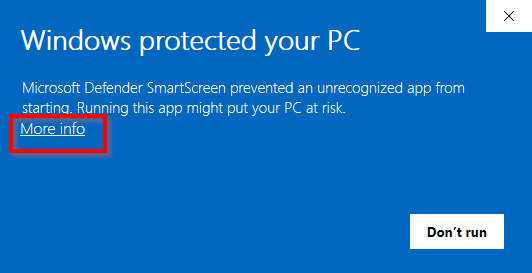
In the dialog, click on More information to show the app name and verify its publisher (MapTiler AG). Then it's safe to click Run anyway to start the installation.
Initial configuration
During the installation, you’ll go over the following settings. We recommend to keep the pre-filled default values if you don’t have a specific reason to change them:
- The installation directory where the MapTiler Server application will be located.
- The root directory where MapTiler Server will upload and store your maps.
- The port over which MapTiler Server will communicate. It determines the local address where MapTiler Server runs.
- The administrator password for the MapTiler Server admin interface where you’ll upload and manage your self-hosted maps.
Run MapTiler Server
After a successful installation, MapTiler Server starts automatically and your default browser opens at http://localhost:3650/admin. (If you have changed the default port during the setup, the address will be http://localhost:<custom-port>/admin.) Use your administrator password to log in.
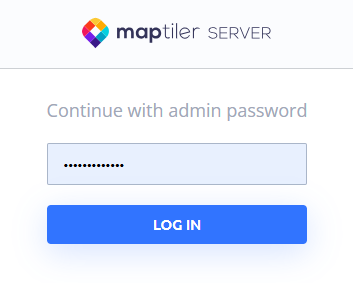
If the Windows firewall blocks the application, allow it manually.
Autostart
MapTiler Server is installed as a standard Windows service. This means that it starts automatically at system boot and runs in the background, making your map services available at all times without manual intervention.
Because the maptiler-server service uses standard system protocols, you can control it using your preferred Windows management tools. For example, you can use the Windows Services Manager to change the service’s Startup type if you prefer to launch MapTiler Server manually rather than automatically at startup.
What’s next
If you’re testing MapTiler Server, the next step is to upload your maps. We recommend to 👉 deploy our free sample maps to see how everything works.
If you’re setting up production deployment, you’ll want to put MapTiler Server behind the IIS server.